How to Use CSS Animations in Web Design 2026: A Complete Guide
April 28, 2026How Can I Make My Website Load Faster in Melbourne? Expert Tips for 2025
April 28, 2026How to Use CSS Animations in Web Design 2026: A Complete Guide
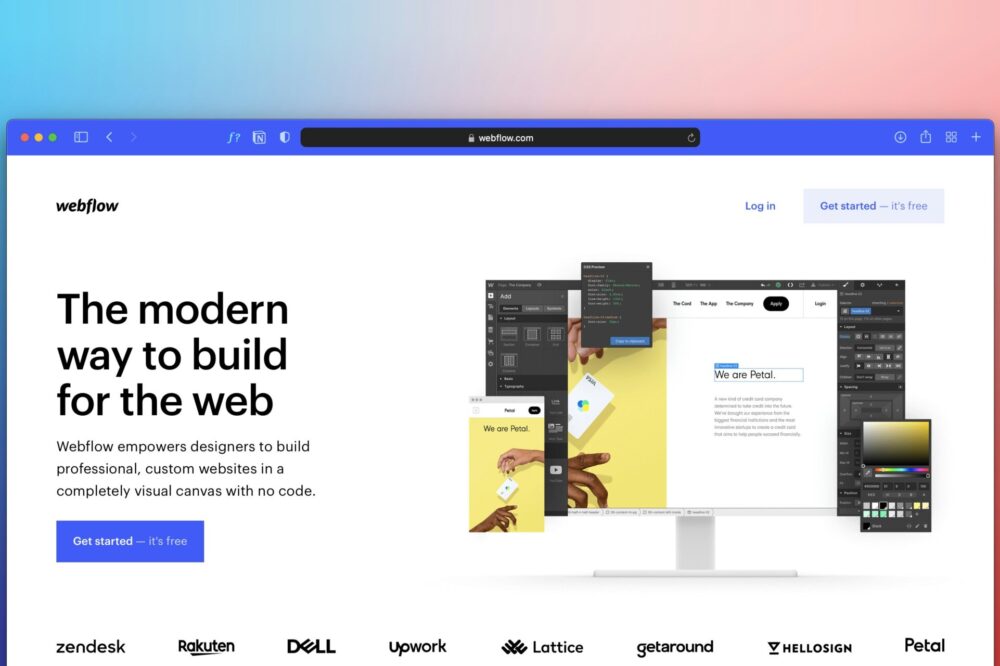
CSS animations have become an indispensable tool for modern web design, enabling developers to create fluid, engaging user experiences without relying on JavaScript libraries. As we move into 2026, the landscape of CSS animations continues to evolve, with new features and best practices emerging. This guide will show you how to use CSS animations in web design 2026 effectively, covering everything from basic principles to advanced techniques. Whether you’re a seasoned developer or just starting, you’ll find actionable insights to enhance your projects.
Why CSS Animations Matter in 2026
In 2026, user expectations for web experiences are higher than ever. Smooth, purposeful animations can significantly improve usability, guide attention, and convey brand personality. CSS animations are lightweight, hardware-accelerated, and easy to implement, making them a top choice for performance-conscious designers. By mastering how to use CSS animations in web design 2026, you can create interfaces that feel responsive and polished.
Getting Started with CSS Animations
Before diving into complex sequences, it’s essential to understand the core components of CSS animations: keyframes and animation properties.
Keyframes: The Building Blocks
Keyframes define the stages of an animation. You specify styles at various points along the timeline, and the browser interpolates the intermediate states. Here’s a basic example:
@keyframes fadeIn {
0% { opacity: 0; }
100% { opacity: 1; }
}
This creates a simple fade-in effect. You can add more keyframes for complex animations.
Animation Properties
Once you define keyframes, you apply them to elements using the animation shorthand or individual properties:
- animation-name: The name of the keyframes you defined.
- animation-duration: How long the animation lasts (e.g., 2s).
- animation-timing-function: The speed curve (ease, linear, ease-in-out, etc.).
- animation-delay: Time before the animation starts.
- animation-iteration-count: Number of times to repeat (infinite for endless).
- animation-direction: Normal, reverse, alternate, or alternate-reverse.
- animation-fill-mode: Styles applied before/after the animation (none, forwards, backwards, both).
- animation-play-state: Pause or running.
Example: .element { animation: fadeIn 1s ease-in-out forwards; }
Modern CSS Animation Techniques in 2026
As of 2026, several new CSS features and best practices have emerged. Here’s how to use CSS animations in web design 2026 with the latest tools.
Scroll-Driven Animations
One of the most exciting developments is native scroll-driven animations. With the animation-timeline property, you can link animations to scroll position without JavaScript. For example:
.element {
animation: fadeIn 1s linear;
animation-timeline: scroll();
}
This triggers the animation as the user scrolls. You can also use view() to animate when an element enters the viewport.
Discrete Animations with @starting-style
Animating from display: none or height: auto was historically tricky. The @starting-style rule now allows you to define initial styles for elements entering the DOM or transitioning from hidden states. This is perfect for modals, dropdowns, and slide-in panels.
Composited Animations for Performance
In 2026, browser rendering has improved, but best practices remain. To ensure smooth animations, stick to animating transform and opacity whenever possible. These properties are composited on the GPU, avoiding layout recalculations. Avoid animating width, height, or top/left as they trigger layout changes.
Step-by-Step: Creating a CSS Animation
Let’s walk through a practical example to demonstrate how to use CSS animations in web design 2026.
Step 1: Define the HTML Structure
Create a simple card component:
<div class=”card”>
<h3>Hello, 2026!</h3>
<p>This card animates on hover.</p>
</div>
Step 2: Write the Keyframes
We want the card to scale up and change color on hover:
@keyframes cardHover {
0% { transform: scale(1); background: #fff; }
100% { transform: scale(1.05); background: #f0f0f0; }
}
Step 3: Apply the Animation
Use the :hover pseudo-class to trigger the animation:
.card:hover {
animation: cardHover 0.3s ease-in-out forwards;
}
For a smoother experience, consider using transitions instead for simple hover effects. But animations provide more control over intermediate states.
Advanced Animation Patterns
To truly master how to use CSS animations in web design 2026, explore these advanced patterns.
Staggered Animations
Staggered animations create a wave effect by delaying each child’s animation. Use animation-delay with a formula:
.item:nth-child(1) { animation-delay: 0s; }
.item:nth-child(2) { animation-delay: 0.1s; }
.item:nth-child(3) { animation-delay: 0.2s; }
This works well for list items, gallery images, or step-by-step reveals.
Multi-Step Animations
Combine multiple keyframe sequences for complex motion:
@keyframes bounceIn {
0% { transform: scale(0); opacity: 0; }
50% { transform: scale(1.2); opacity: 1; }
100% { transform: scale(1); }
}
This creates a bouncing entrance effect.
Animation with CSS Custom Properties
Leverage custom properties to create reusable animation templates:
:root {
–animation-duration: 0.5s;
–animation-easing: ease-out;
}
.element { animation: slideIn var(–animation-duration) var(–animation-easing); }
This makes it easy to maintain consistent timing across a project.
Performance Optimization Tips
Performance is critical when considering how to use CSS animations in web design 2026. Here are key tips:
- Use the will-change property sparingly to hint at upcoming changes (e.g., will-change: transform). Overuse can harm performance.
- Prefer transforms and opacity as mentioned.
- Keep animations short (under 1 second typically) to maintain responsiveness.
- Test on low-end devices to ensure smooth performance.
- Use the requestAnimationFrame equivalent in CSS: browsers automatically optimize CSS animations.
Accessibility Considerations
Animations can cause discomfort for users with motion sensitivity. In 2026, accessibility is non-negotiable. Always respect the prefers-reduced-motion media query:
@media (prefers-reduced-motion: reduce) {
.element { animation: none; }
}
Provide alternative static states or subtle transitions when animations are disabled.
Common Mistakes to Avoid
- Over-animating: Too many moving elements can overwhelm users. Use animations sparingly to highlight important interactions.
- Ignoring timing functions: Default ease may not suit all effects. Experiment with cubic-bezier for custom curves.
- Forgetting fallbacks: While browser support is excellent, always test older browsers. Consider using feature queries (@supports).
- Animating on page load without purpose: Entrance animations should enhance, not delay, content visibility.
Tools and Resources for 2026
Stay ahead with these tools:
- CSS Animation Inspector in DevTools: Debug and tweak animations in real-time.
- Keyframe generators: Online tools to visually create and export keyframes.
- CodePen and Codepen Collections: Explore community examples of how to use CSS animations in web design 2026.
- CSS specifications: Follow the W3C for upcoming features like animation-composition and scroll-timeline.
Conclusion
CSS animations are a powerful way to elevate web design in 2026. By understanding keyframes, leveraging modern features like scroll-driven animations and @starting-style, and adhering to performance and accessibility best practices, you can create delightful user experiences. Remember to use animations purposefully—enhance usability without distraction. Now that you know how to use CSS animations in web design 2026, start experimenting with your own projects. The possibilities are endless, and the results will speak for themselves.
Photo by Team Nocoloco on Unsplash