
What Is the Impact of Web Design on Conversion Rates?
April 27, 2026
What Is the Impact of Page Speed on User Experience?
April 27, 2026How to Create a Dark Mode Website in 2026: Complete Guide
Introduction
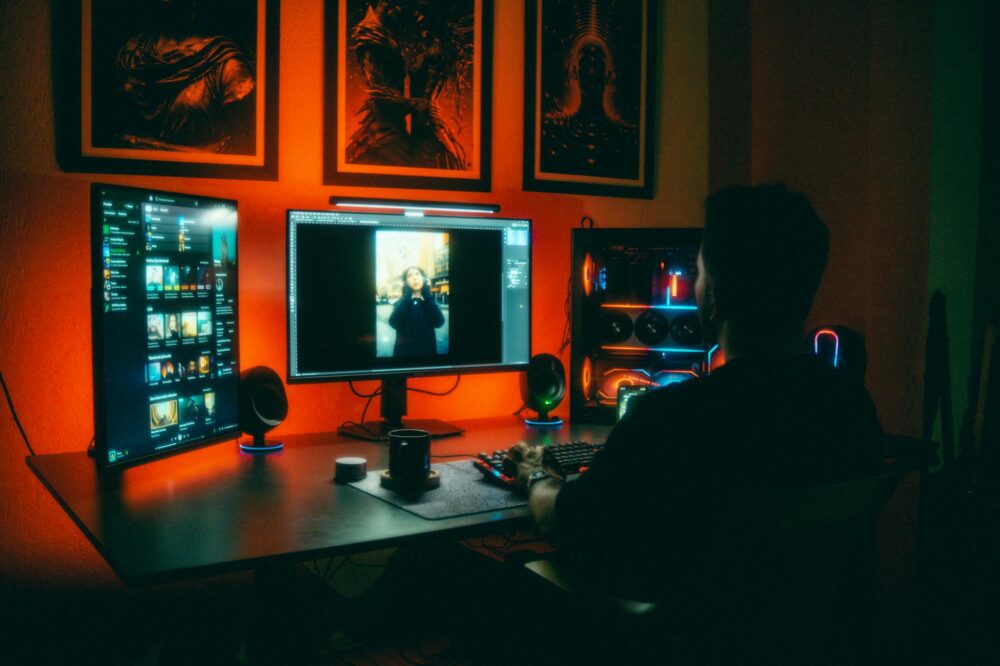
Dark mode has become a standard feature for modern websites, offering reduced eye strain and improved battery life on OLED screens. In 2026, users expect websites to automatically adapt to their system preferences or allow manual toggle. This guide will walk you through everything you need to know about how to create a dark mode website in 2026, from basic CSS techniques to advanced JavaScript implementations, accessibility considerations, and performance optimization. Whether you’re building a new site or retrofitting an existing one, you’ll find actionable steps to deliver a seamless dark mode experience.
Why Dark Mode Matters in 2026
Dark mode isn’t just a trend—it’s an accessibility and user experience necessity. Studies show that over 80% of users prefer dark mode for late-night browsing. In 2026, operating systems like Windows, macOS, iOS, and Android all support system-wide dark mode, and users expect websites to respect that preference. Implementing dark mode can reduce energy consumption on OLED and AMOLED screens by up to 30%, improve readability for users with visual sensitivities, and enhance the aesthetic appeal of your site. By learning how to create a dark mode website in 2026, you align with modern web standards and user expectations.
Core Techniques for Dark Mode Implementation
1. CSS Custom Properties (Variables)
The foundation of any dark mode implementation is CSS custom properties. Define color variables for light and dark themes, then switch them using a class or media query. This approach ensures maintainability and easy updates.
Example:
:root { --bg: #ffffff; --text: #000000; }
.dark-mode { --bg: #121212; --text: #e0e0e0; }
2. CSS Media Query: prefers-color-scheme
Use the prefers-color-scheme media query to automatically apply dark mode based on the user’s system settings. Combine this with manual toggle for flexibility.
Example:
@media (prefers-color-scheme: dark) { :root { --bg: #121212; --text: #e0e0e0; } }
3. JavaScript Toggle with Local Storage
For manual control, use JavaScript to toggle a class and persist the preference in localStorage. This allows users to override system settings.
Key steps:
- Add a toggle button (e.g., sun/moon icon).
- On click, toggle a class on the
<html>or<body>element. - Save the state to localStorage.
- On page load, check localStorage and apply the saved theme.
Step-by-Step Implementation Guide
Step 1: Define Your Color Palette
Choose accessible colors for both themes. Use a tool like WebAIM Contrast Checker to ensure a contrast ratio of at least 4.5:1 for normal text. For dark mode, avoid pure black (#000) and pure white (#fff); instead, use dark gray (#121212) and off-white (#e0e0e0) to reduce eye strain.
Step 2: Set Up CSS Variables
Create a :root block for light mode and a .dark-mode class for dark mode. Include variables for backgrounds, text, links, borders, shadows, and any other recurring colors.
Step 3: Apply the Media Query
Add the prefers-color-scheme media query to automatically set the dark mode if the user’s system is in dark mode. This ensures a seamless experience without any JavaScript.
Step 4: Build the Toggle Button
Create a button with accessible labels and icons. Use ARIA attributes like aria-label="Toggle dark mode" and role="switch" to improve accessibility.
Step 5: Write the JavaScript
Implement a function that toggles the dark-mode class on the <html> element. Save the preference to localStorage. On page load, check localStorage and apply the saved theme, respecting the media query as a default.
Step 6: Test Across Devices
Test on multiple browsers, operating systems, and devices. Ensure that the toggle works correctly and that the media query respects system changes in real-time.
Advanced Techniques for 2026
1. CSS Color-Mix() and Light-Dark()
In 2026, modern CSS features like color-mix() and the light-dark() function simplify theme switching. The light-dark() function takes two color values and automatically applies the correct one based on the current color scheme. Example: color: light-dark(#000, #fff); This reduces the need for custom properties and media queries.
2. SVG and Image Adaptations
Use CSS filters or <picture> elements to serve different images for dark mode. For SVGs, use currentColor and CSS variables to adjust fill and stroke colors.
3. Smooth Transitions
Add transition: background-color 0.3s, color 0.3s; to the <html> element to create a smooth shift between themes. Avoid transitioning all properties to prevent performance issues.
4. Third-Party Components
If you use UI libraries (e.g., Bootstrap, Tailwind), ensure they support dark mode. Many frameworks in 2026 have built-in dark mode utilities. For custom components, apply the same CSS variable approach.
Accessibility and Best Practices
- Respect system settings: Use
prefers-color-schemeas the default, but allow manual override. - Maintain contrast: Ensure all text meets WCAG AA standards in both themes.
- Don’t rely solely on color: Use icons, borders, or patterns to convey information.
- Provide a toggle: Always give users the option to switch, and remember their choice.
- Avoid pure black/white: Use dark grays and off-whites to reduce eye strain.
- Test with screen readers: Ensure that theme changes are announced properly.
Performance Optimization
- Minimize repaints: Use CSS variables only for colors that change, and avoid transitioning large areas.
- Use
will-changesparingly: Only on elements that animate. - Lazy load images: If serving different images for dark mode, lazy load them to reduce initial load time.
- Cache the preference: localStorage is fast; avoid unnecessary API calls.
Troubleshooting Common Issues
Flickering on Page Load
To prevent a flash of light mode before JavaScript applies the dark theme, inline a small script in the <head> that checks localStorage and sets the class immediately. Alternatively, use a server-side solution to serve the correct CSS.
Inconsistent Colors Across Browsers
Test on multiple browsers and use vendor prefixes if needed. In 2026, most modern browsers support prefers-color-scheme and CSS variables, but always verify.
Overriding User Preferences
If a user has set their system to dark mode but your site forces light mode, they will have a poor experience. Always respect the media query and provide a toggle.
Future-Proofing Your Dark Mode
As web standards evolve, consider using the color-scheme meta tag to inform the browser of your supported themes. This allows the browser to apply default styles accordingly. Example: <meta name="color-scheme" content="light dark">. Also, stay updated on new CSS features like light-dark() and color-mix() that will simplify theme management in the future.
Conclusion
Creating a dark mode website in 2026 is more than a visual upgrade—it’s a commitment to user comfort, accessibility, and modern web standards. By following this guide, you’ve learned how to create a dark mode website in 2026 using CSS custom properties, media queries, JavaScript toggles, and advanced techniques like light-dark(). Remember to prioritize accessibility, test thoroughly, and respect user preferences. Implementing dark mode not only enhances user experience but also demonstrates that your website is up-to-date with current trends. Start integrating dark mode today and give your users the choice they deserve.